
To finish this step you would require:
- MoPub Ad Unit Id for the interstitial placement that you want to request
- PubNative Zone Id for the interstitial placement
- PubNative Apptoken for the relevant app
Go to the Networks tab on the MoPub Dashboard. Select the option to add a new network. Select Custom SDK Network.
[block:image] { "images": [ { "image": [ "https://files.readme.io/cfe014f-82ca499-mopub-mediation-008.png", "82ca499-mopub-mediation-008.png", 1016, 813, "#445460" ], "caption": "Add Network" } ] } [/block]Create PubNative Mediation Network
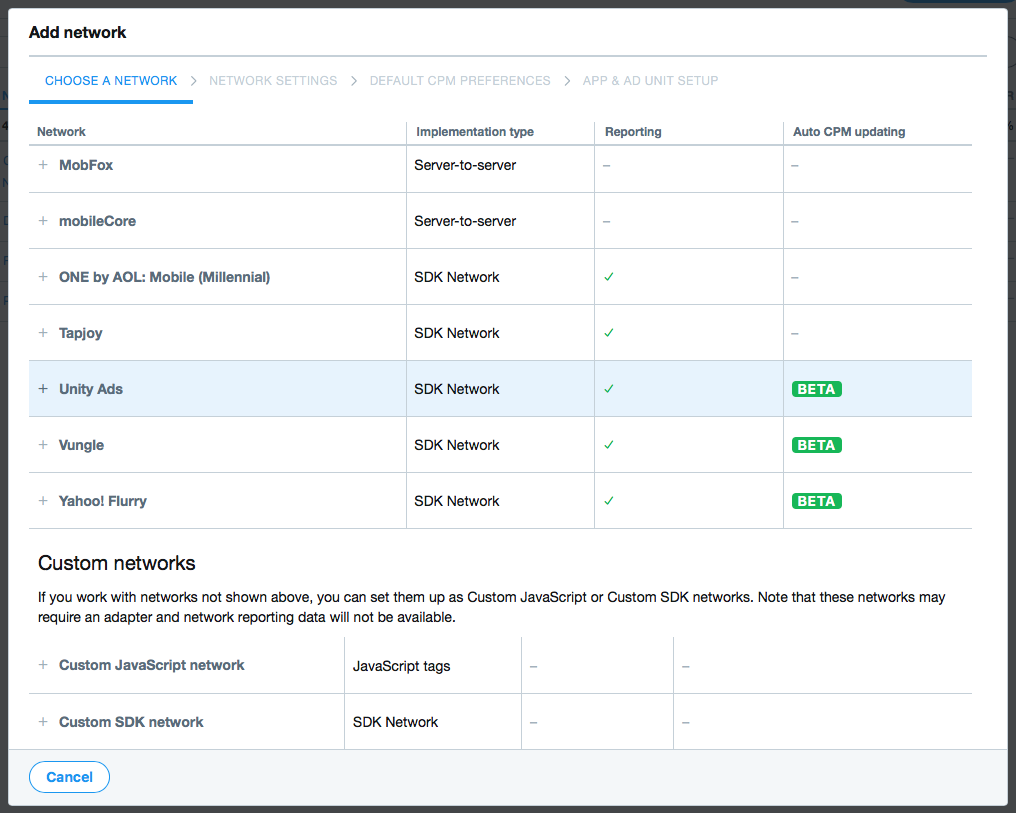
Add Network
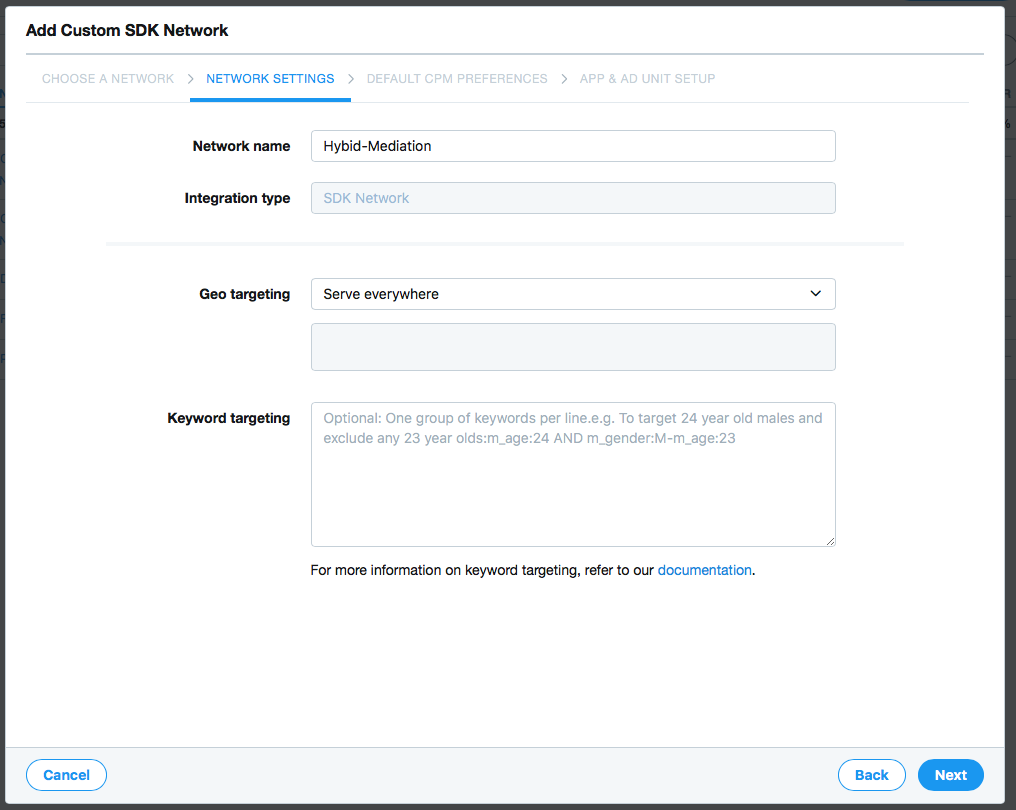
Add Custom SDK Network
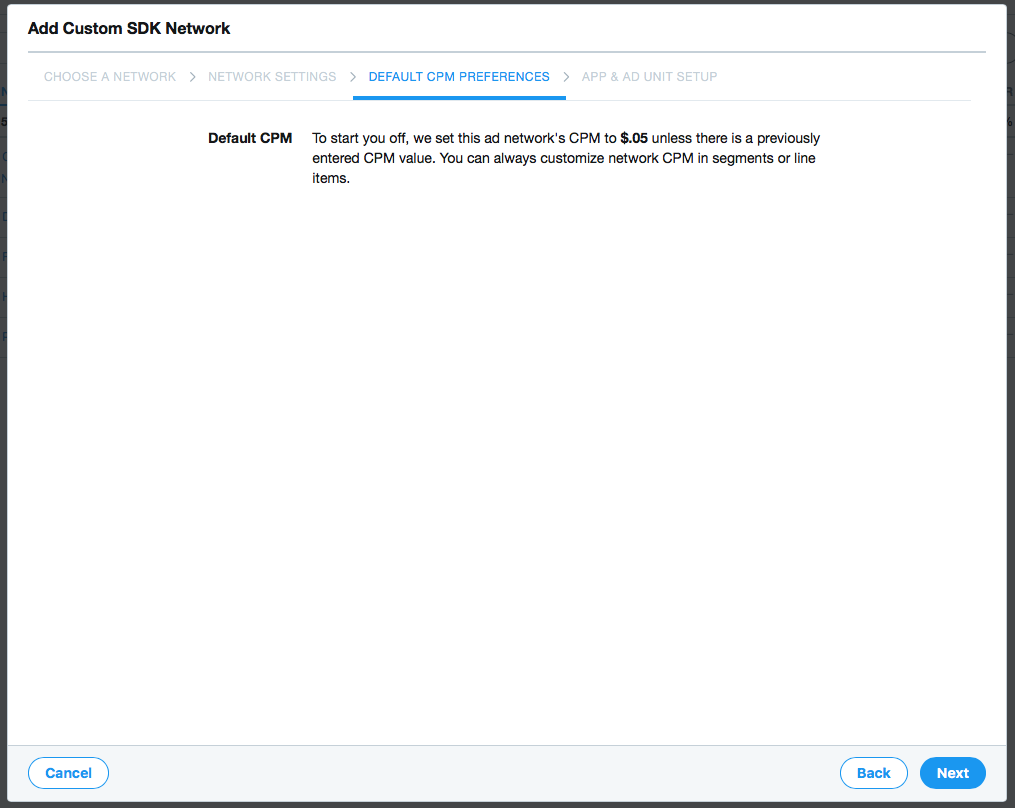
Add Custom SDK Network
On the App and Ad Unit setup section of the network creation dialog, navigate the list of app all the way to the app and ad units where you want to set up HyBid adapters.
Insert the following custom event names and params for each interstitial ad unit:
net.pubnative.lite.adapters.mopub.mediation.HyBidMediationInterstitialCustomEventParameters to set up:
{
    "pn_app_token": "<YOUR PUBNATIVE APP TOKEN>",
    "pn_zone_id": "<YOUR PUBNATIVE ZONE ID>"
}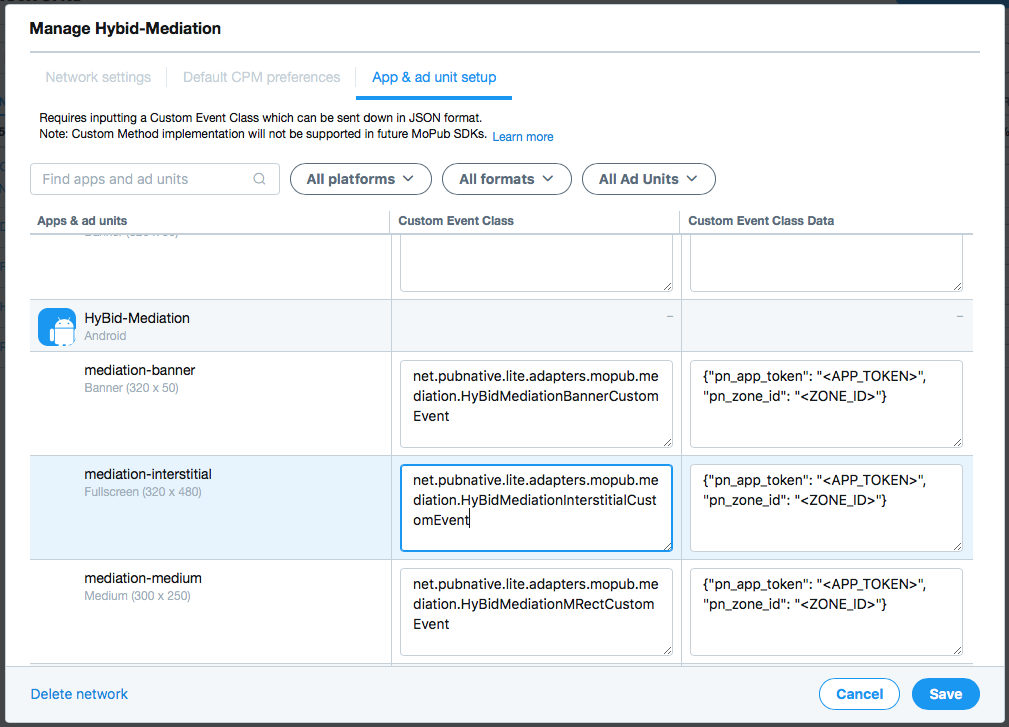
App & Ad Unit Setup
After setting up the network. Activate it for the app in the Segments tab in the MoPub Dashboard.
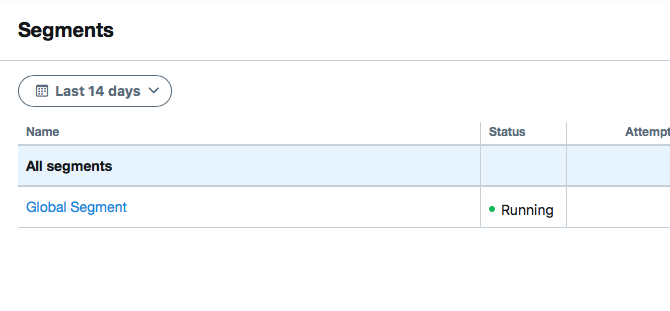
Segments
Set up the proper floor eCPM and make sure the network is enabled for all the required ad units.
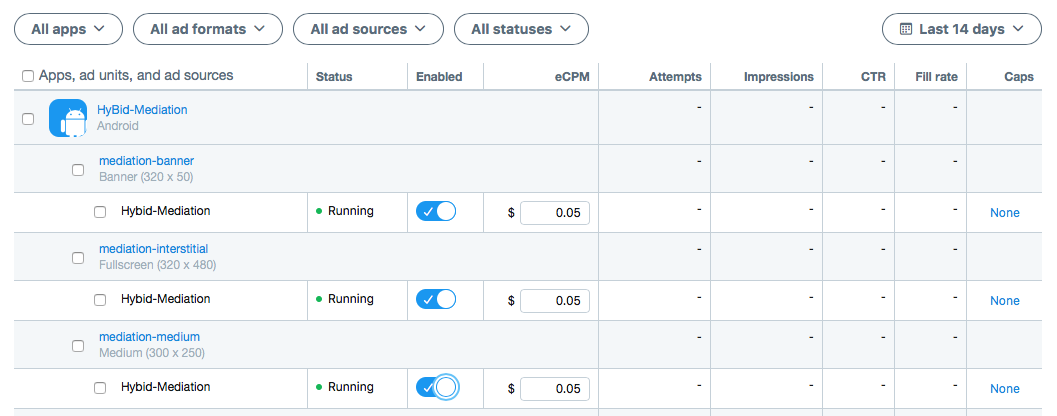
Enabling
Proceed to request ads.